
This article describes how I learned how to contribute to the Batocera project.
Arcade Corner
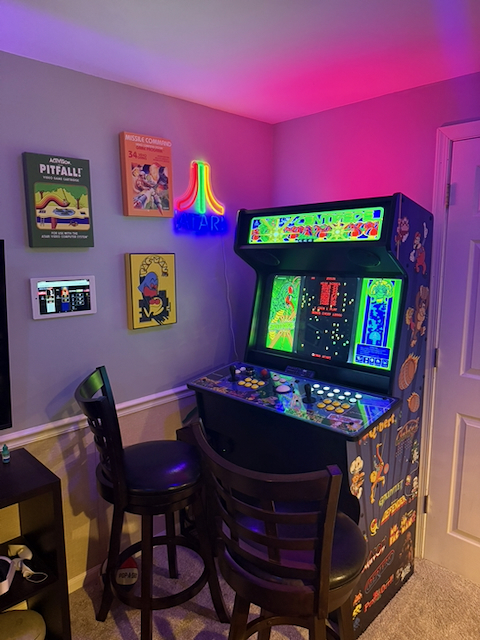
My little arcade corner consists a Rec Room Masters 32 inch stand up arcade with an Emulation Plus controller and custom artwork. Emulation is powered by a Raspberry Pi 4, running Batocera. I have a Pixelcade LCD marquee that syncs up with Batocera to show digital marquees that match the game being played. On my wall, I have an Amazon Fire Tablet that is running iScored digital high score board. The artwork on the wall are canvas prints I had made. I rounded it out with an LED Atari sign. The color lights are Hue lights.
The Problem: Where Are My Arcade Buttons?
I’ve been using Batocera for my retro gaming setup. Batocera is a free, Linux-based operating system designed for retro gaming. Its front end, EmulationStation, provides an interface for browsing games, configuring controllers, and launching emulators.
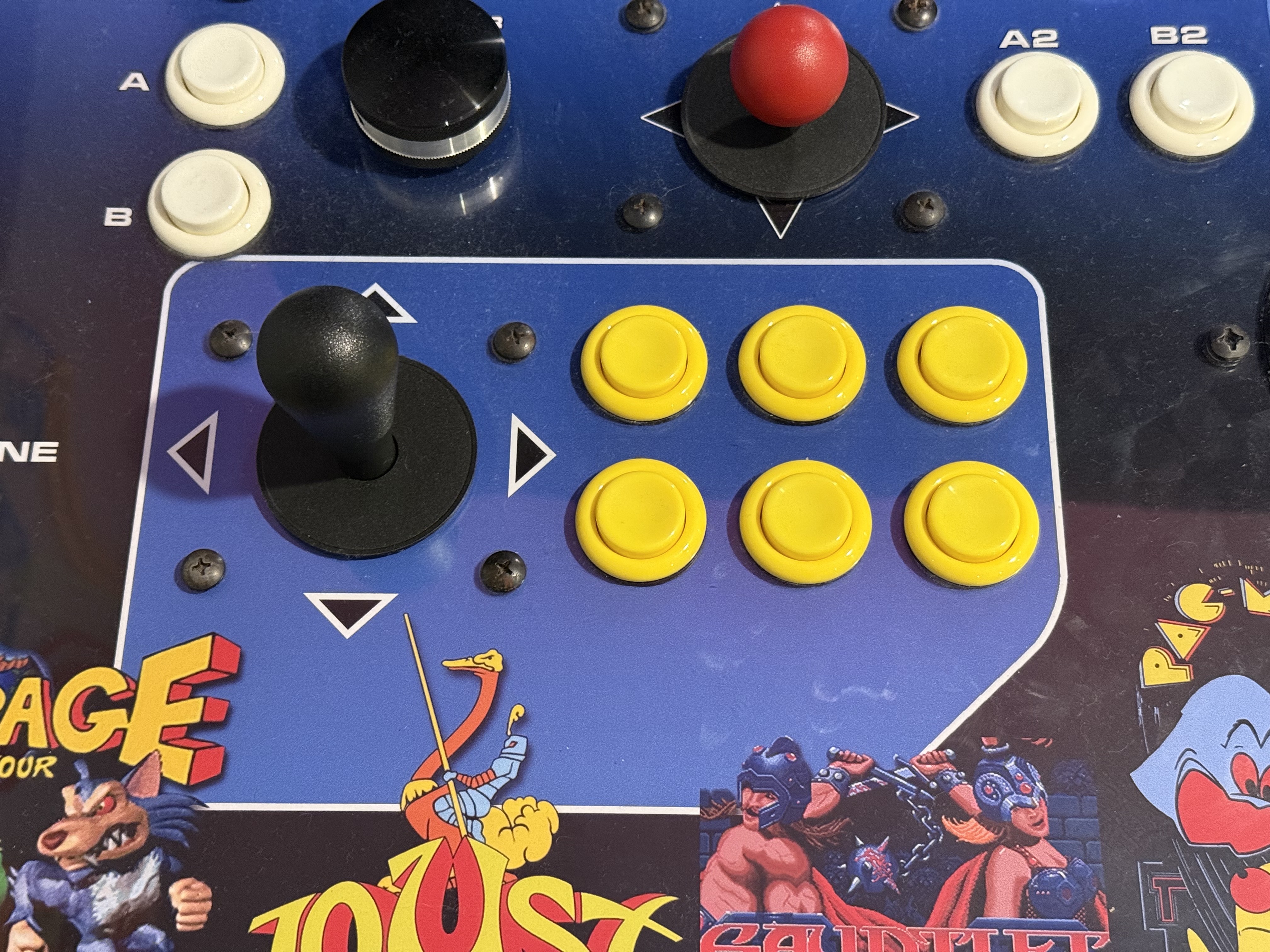
My arcade controller uses a traditional six-button Capcom-style layout, with two rows of three buttons. I was a teenager during the peak of the Street Fighter II era where this layout became popular.
The problem was that Batocera’s default theme, called Carbon, didn’t have an option to display the on-screen help buttons in this layout.
When browse around Emulation Station, there is a series of “help” buttons along the bottom of the screen. This indicates what physical buttons you would have to push to activate options such as Menu, Search, Random, and Select.

Carbon already supported several help-button styles, including standard North/South/East/West positions and Xbox and PlayStation button symbols. But none of those matches my 6 button layout.
At first this might seems like a minor inconvenience and in the grand scheme of life it is a minor inconvenience indeed. However, I don’t play my arcade anywhere near as much as I would like and trying to remember which physical button was for Search, Random and Select was difficult.
Us arcade enthusiasts are an aging breed, but we are still out here and I wanted to create buttons that represent us.
Finding the Right Source Code
I have years of experience with configuring Retropie and Batocera, but this was my first attempt to contribute to the project. My first challenge was figuring out where to make the change.
Batocera’s main GitHub repository is:
Initially, I assumed the default theme would be maintained within this repository. After some investigation, however, I discovered that Carbon was actually maintained as a separate GitHub project:
Batocera includes Carbon as its default theme, but the theme has its own source code, development process, and GitHub repository. Occasionally, Batocera will pull in the latest version of the Carbon theme into its build. As a result, I need to make my change in the Carbon theme repository.
Understanding How the Help Buttons Work
Once I found the correct repository, the next challenge was figuring out how the on-screen buttons were configured. I cloned a copy of Carbon local and started playing around.
I decided I was going to create a 6 button layout as well as an 8 button layout. After doing some digging and searching in the source code, I discovered there were 3 parts to this puzzle
- theme.xml – This is was an existing file in the theme that I had to update to new options to the Help buttons menus
- 6buttons.xml / 8buttons.xml – These are files that I had to create. They are referenced by theme.xml and they define what buttons map to what SVG images
- SVG Images – These are the button images I had to create
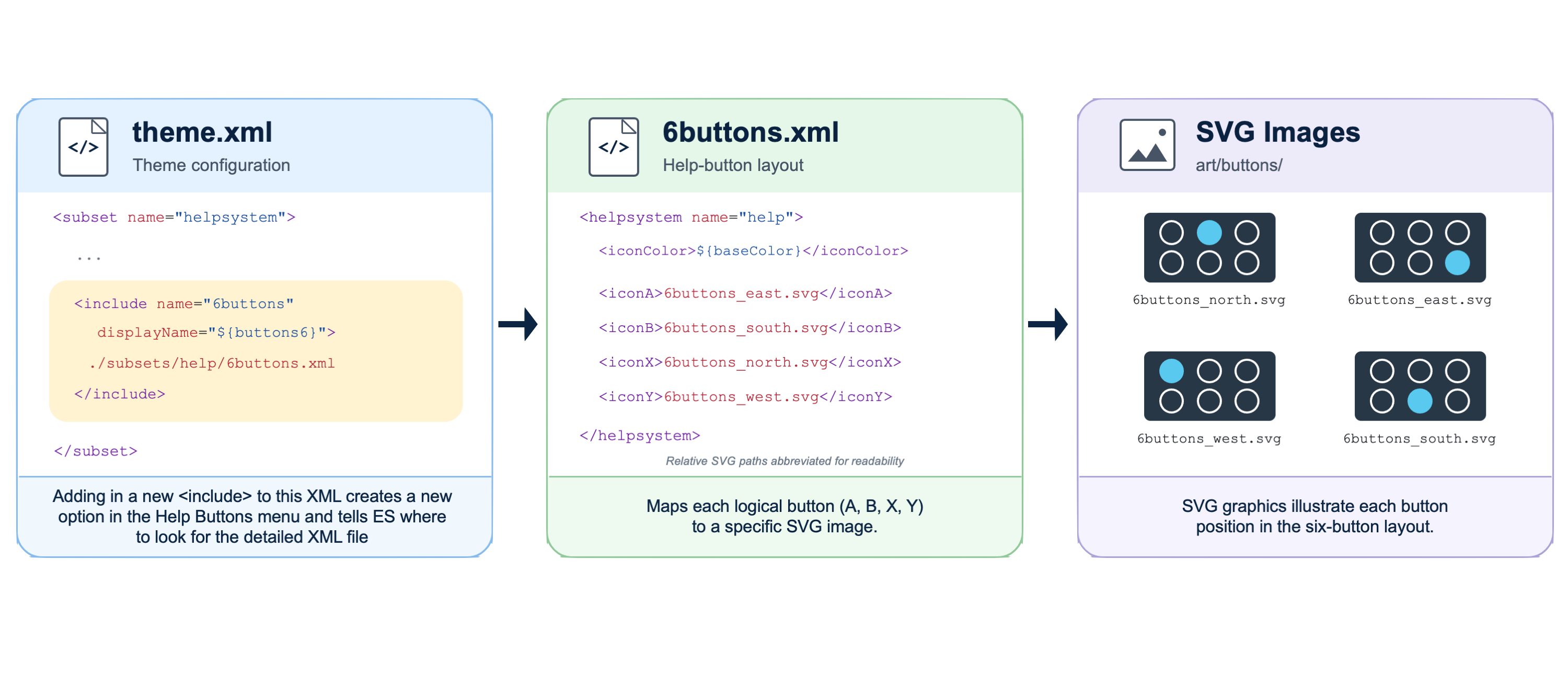
The first XML file(s) was under:
subsets/help/
within the theme. This XML file describes which images map to which functions. (Menu, Search, Random, and Select)
Here is the configuration of the 6buttons.xml file:
<?xml version="1.0" encoding="UTF-8"?><theme> <formatVersion>7</formatVersion> <include>./default.xml</include> <customView name="system,basic,detailed,gamecarousel,grid,Carousel,Tiles,Boxes,Icons,Content"> <helpsystem name="help"> <iconColor>${baseColor}</iconColor> <!-- Add in relative location within the theme --> <iconA>./../../art/buttons/6buttons_east.svg</iconA> <iconB>./../../art/buttons/6buttons_south.svg</iconB> <iconX>./../../art/buttons/6buttons_north.svg</iconX> <iconY>./../../art/buttons/6buttons_west.svg</iconY> </helpsystem> </customView></theme>
Learning to Create SVG Graphics
The next challenge was something I had never done before: creating SVG image files.
SVG stands for Scalable Vector Graphics. Unlike conventional raster images such as PNGs or JPEGs, SVG files describe images using vector shapes, coordinates, and other graphical elements.
Initially, I didn’t understand why SVGs were being used for something as simple as a button icon. It seemed like an unnecessary complication compared with creating a PNG image.
Carbon allows users to select different theme colors, and by using SVG, those settings can automatically change the colors of the button icons without having to have an image of each color choice.
In other words, the buttons weren’t simply static images with fixed colors. The theme could apply its selected colors to the SVG graphics so that they matched the rest of the interface. There are only a few choices of colors in the theme but given this use of SVG, in theory, the buttons could be any RGB color.
That was an interesting realization. The SVG format wasn’t just about image quality or scalability; it also allowed the buttons to participate in the theme’s customization system.
Since I had never created an SVG file before, I needed to find an application that would allow me to create and edit vector graphics. After researching the available options, I chose MacSVG, a free SVG editing application for macOS.
MacSVG allowed me to create the button illustrations visually without needing to write the SVG markup by hand. This gave me an opportunity to learn how vector graphics worked while developing the actual images I needed for the project.
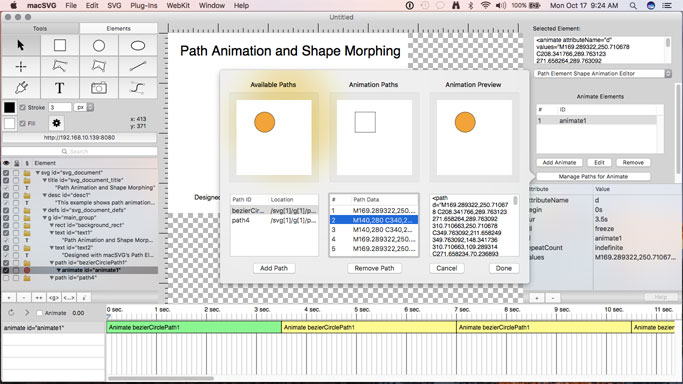
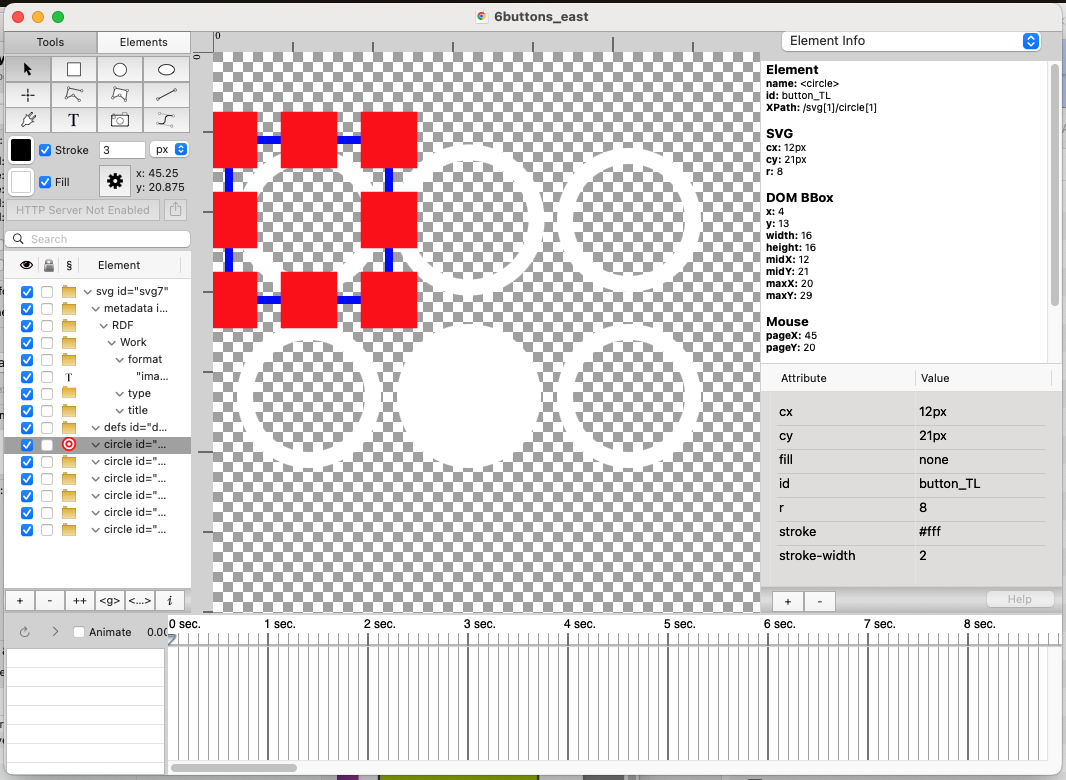
I needed separate images for the four logical button positions: North, South, East, and West. Each would illustrate the appropriate position within a six-button arcade arrangement.
Once I had the six-button layout working, I also created a corresponding eight-button arrangement, commonly found on modern arcade fight sticks.
The final contribution included eight SVG files, stored under:
art/buttons/
Creating these files was an interesting learning experience in itself. What initially seemed like a simple matter of drawing a few buttons required learning a new graphics format, understanding why it was used, and getting the resulting files to display correctly within the theme.
Modifying Carbon’s XML Configuration
With the SVG files created, the next step was telling Carbon how to use them.
I created two new XML configuration files:
subsets/help/6buttons.xml
subsets/help/8buttons.xml
Each file defined which SVG image should be displayed for the corresponding A, B, X, and Y help-button positions.
I found out that the standard help-button SVG images were located within Batocera’s EmulationStation resources, not in the Carbon theme:
/usr/share/emulationstation/resources/help/
I decided however, to locate them within the Carbon theme itself. More about why I did that below.
Here is the configuration of the 6buttons.xml file:
<?xml version="1.0" encoding="UTF-8"?><theme> <formatVersion>7</formatVersion> <include>./default.xml</include> <customView name="system,basic,detailed,gamecarousel,grid,Carousel,Tiles,Boxes,Icons,Content"> <helpsystem name="help"> <iconColor>${baseColor}</iconColor> <!-- Add in relative location within the theme --> <iconA>./../../art/buttons/6buttons_east.svg</iconA> <iconB>./../../art/buttons/6buttons_south.svg</iconB> <iconX>./../../art/buttons/6buttons_north.svg</iconX> <iconY>./../../art/buttons/6buttons_west.svg</iconY> </helpsystem> </customView></theme>
So, for example, in the six-button configuration, what this is saying is the iconA setting is pointed to this SVG file:
./../../art/buttons/6buttons_east.svg
The other button positions referenced their respective SVG files.
The last step was editing the theme’s main theme.xml file.
That file contains the available theme customization options. I added entries for 6 Buttons and 8 Buttons to the help-system subset, referencing the two new XML files.
As I mentioned briefly above, I had to make a decision about where to store the new SVG images that I created.
One Repository or Two?
As I had discovered earlier, the standard help-button images weren’t stored in Carbon itself. They were part of EmulationStation, the application that provides Batocera’s graphical front end.
From a software architecture perspective, there was a reasonable argument for putting my new button graphics in that same location. After all, they served the same purpose as the existing images, and storing them with the other help-button resources would make them available to other themes as well.
However, doing that would have complicated the contribution.
I would have needed to submit one pull request to the EmulationStation repository to add the SVG files, and another to Carbon to add the configuration options that referenced them.
Those two changes would also have become dependent on one another. If the Carbon changes were accepted before the new images became available in EmulationStation, the configuration could reference graphics that didn’t yet exist in Batocera.
There was also the practical issue of coordinating reviews and merges across two different projects, potentially involving different maintainers and development schedules.
The alternative was to keep the new SVG files directly within Carbon.
Carbon already supported referencing its own graphical resources, so this wouldn’t require any changes to EmulationStation. I could package the new images and their associated configuration together in a single pull request.
There was a tradeoff, of course. The images would be specific to Carbon rather than available as shared EmulationStation resources. Another theme wanting to use them might need to copy the graphics or implement its own version.
But for this relatively small enhancement, I felt that keeping the changes self-contained was the more practical approach.
Ultimately, I chose to include the SVG graphics directly within Carbon. That allowed the entire enhancement to be reviewed, tested, and merged as one change, without introducing dependencies on another repository.
This turned out to be an important lesson in open-source development: sometimes the most theoretically elegant architecture isn’t necessarily the best way to deliver a relatively small improvement.
Maybe someday, I’ll submit another PR to add the buttons to Emulation Station and change the references in Carbon, but I have too many other fun things I want to do first.
Contributing the Changes Back to the Project
Now after testing my changes, I wanted to contribute them back to the Carbon repository
To do this, I forked the Carbon repository on GitHub, committed my modified XML files and new SVG graphics, and created a pull request.
A pull request, or PR, is GitHub’s mechanism for proposing changes to another project. It allows maintainers to inspect the changes, provide feedback, and merge the contribution into their main source code.
My pull request was:
PR #117 — Add 6 and 8 button arcade style controller Help Buttons to the Carbon Theme
The PR contained 11 changed files: eight new SVG images, two new XML configuration files, and the updated theme.xml.
In my description, I explained what I was trying to accomplish, including why I had chosen to keep the SVG graphics within Carbon instead of contributing them separately to EmulationStation.
By keeping the entire change self-contained, the new feature could be implemented without requiring modifications to another project.
The Pull Request Review
On March 5, 2025, the Carbon maintainer, Fabrice Caruso, reviewed my submission.
He pointed out a small but important issue.
I had added the new six-button and eight-button options at the beginning of the help-system options list.
Unfortunately, the first option in that list was used as the default. That meant my change would unintentionally make the six-button layout the new default for everyone using Carbon.
That wasn’t what I intended.
Fabrice asked me to move the two new options to the bottom of the list, preserving the existing default behavior.
I made the correction, updated the pull request, and replied to confirm the change.
Later that same day, March 5, 2025, the pull request was merged into the official Carbon repository.
This was a useful reminder that contributing to an established project involves more than making sure a new feature works. Changes should also preserve existing behavior for other users.
The entire review discussion, along with the three commits that made up the contribution, is available in the GitHub pull request.
From Carbon to Batocera
Getting the change merged into Carbon was an important milestone, but it wasn’t quite the end of the story.
Remember that Carbon is maintained separately from Batocera itself.
Even though Batocera includes Carbon as its default theme, a change merged into the Carbon repository doesn’t necessarily appear immediately in a Batocera installation.
Batocera’s build process specifies which revision of Carbon should be included with the operating system. When that reference is updated, newer versions of the theme become part of subsequent Batocera builds.
Eventually, my changes made their way into Batocera itself.
What began as a small customization for my own arcade setup had become part of the default experience available to other Batocera users.
I hadn’t needed to build or compile the entire Batocera operating system. By identifying the correct upstream project, I could contribute the enhancement at the level where it belonged.
What I Learned
Looking back, this project turned out to involve considerably more than simply changing a few button graphics.
I had to figure out how Batocera and its default theme were organized, locate the existing help-button resources, understand the XML configuration system, learn how to create SVG graphics using MacSVG, and test my changes.
Along the way, I gained a better appreciation for some of the design decisions behind the software. The use of SVG graphics was a good example. Initially, I didn’t understand why the developers had chosen that format, but learning how the buttons responded to theme color changes helped me understand its advantages.
I also had to make a decision about how to organize the contribution. Keeping the new graphics within Carbon wasn’t necessarily the only possible approach, but it allowed me to implement the feature without coordinating changes across multiple repositories.
And I gained practical experience contributing to an open-source project through GitHub, responding to a maintainer’s feedback, and seeing a contribution incorporated into a larger software distribution.
One of the more interesting lessons was how even a relatively small visual improvement can cross several technical boundaries.
What seemed like a simple missing option involved the relationship between an operating system, its front-end application, a separately maintained theme, and the theme’s graphical resources.
But the most satisfying part was seeing the finished feature merged into the official project.
Open-source software makes this kind of contribution possible. If something doesn’t work quite the way you want, you can investigate how it works, modify it, and potentially contribute that improvement back so everyone benefits.
In this case, it started with six buttons on an arcade controller.
And now those buttons are part of Carbon.
Project Links and References
- Batocera — Official Website
- Batocera — Main GitHub Repository
- Batocera EmulationStation — GitHub Repository
- Carbon Theme — GitHub Repository
- My Pull Request #117 — Six- and Eight-Button Arcade Help Icons
- MacSVG — SVG Editor for macOS
- Batocera Wiki — Creating EmulationStation Themes
- Community Discussion — Locating Carbon’s Help-Button Icons


Leave a Reply